Introduction
In this blog post, I will be sharing a complete writeup on the Memlabs challenge. This challenge was created by my supersenior,Abhiram Bhaiya aka Stuxnet and it proved to be an exciting and educational experience. I will walk you through the steps I took to solve the challenge and provide insights into the techniques and tools used.
Challenge Overview
The Memlabs challenge is a Capture The Flag (CTF) challenge that focuses on memory forensics. It involves analyzing memory dumps to uncover hidden information and solve various puzzles and tasks. The challenge is designed to test your skills in reverse engineering, malware analysis, and memory analysis. There are 6 labs in total and i’ll be solving the 4 most important ones over here.
Approach
To solve the Memlabs challenge you will mostly need the volatility tool to analyze the memory dump for more artifacts, Here i’ll be using Volatility-2
Lab 1
Description
My sister’s computer crashed. We were very fortunate to recover this memory dump. Your job is get all her important files from the system. From what we remember, we suddenly saw a black window pop up with some thing being executed. When the crash happened, she was trying to draw something. Thats all we remember from the time of crash.
Note: This challenge is composed of 3 flags.
First we get info on the system using imageinfo
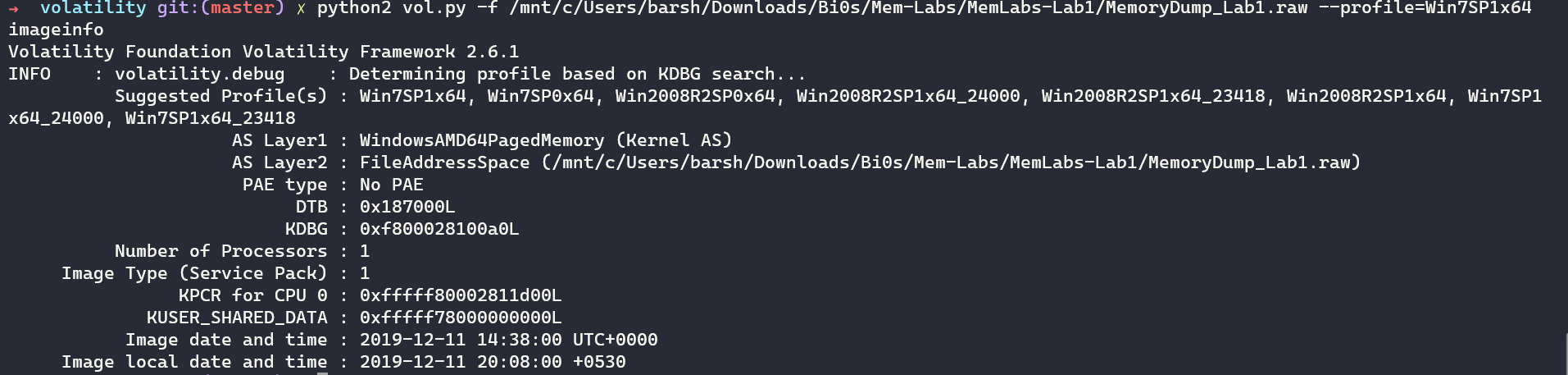
Flag 1:
We can check the cmd line history from the console information using consoles to know what happened in the command line

We can see a weird string over there….we base64 it and we get the flag we want.
Flag2:
so as it is stated as important file we can grep the keyword
python2 vol.py -f /mnt/c/Users/barsh/Downloads/Bi0s/MemLabs-Lab1/MemoryDump_Lab1.raw --profile=Win7SP1x64 filescan | grep -i important
now we dump the file using dump files

We are asked for a pass to view so we extract the hashes using hashdump

Putting the NTML hash in caps and passing it will reveal the file and we get the first flag
Flag 3:
Let us see the processes that were run in the system using pslist.

we can see paint.exe was run in the system

So we dump the process using memdump and the process id of the process to analyse it :

No analyse this file we can use GIMP and adjusting the height and width and changing the offsets we can manage to get our flag.

Lab-2
Description
One of the clients of our company, lost the access to his system due to an unknown error. He is supposedly a very popular “environmental” activist. As a part of the investigation, he told us that his go to applications are browsers, his password managers etc. We hope that you can dig into this memory dump and find his important stuff and give it back to us.
Note: This challenge is composed of 3 flags.
Flag 1:
As we see the word enviromental is highlighted so the flag might me related so we check out the enviromental variables of the system using the envars command

we can see a string…..looks like a Base64…so let’s decode and we get our first flag.
Flag 2:
For the second flag the user tells us to check out his browsers and password managers as a hint….so let’s take a look at his processes


And we see Keepass which as a open source password manager…could be useful…
As we know that keepass database has an extension of kdbx so let’s try grepping it in file scan and dump it


Now it asks us for a masterkey which we have no clue of..let’s try grepping keywords like password or key…while grepping password we get a password.png file in the filescan


Dumping that we get a file where the pass is said in the left bottom corner…putting that we get a lot entries…one of them is flag we right-click it and get the flag from it.
Flag 3:
For the last flag the client tells us to look through his browsers so we can see chrome is his most extensively used browser….so let’s install a plugin for that in volatility known as chromehistory.py
running that command we get the chrome history:

We can see a MEGA link following it we get a zipped PNG file which we can open using the flag used in Lab - 1…If you still haven’t completed that refer to my Lab-1 writeup.
Now we have all three flags.
Lab-3
Description:
A malicious script encrypted a very secret piece of information I had on my system. Can you recover the information for me please?
Note-1: This challenge is composed of only 1 flag. The flag split into 2 parts.
Note-2: You’ll need the first half of the flag to get the second.
You will need this additional tool to solve the challenge,
$ sudo apt install steghide
The flag format for this lab is: inctf{s0me_l33t_Str1ng}
Final Flag:
So for this challenge the flag is divided into two parts…so for the first part it says that the malicious code encrypts the info….so let’s say it’s a .py script.
so let’s try to look for em
after grepping for .py we get a file named evil-script…

having a look at the script…it xors a string and then b64 it…so we need to find the output of the code… It’s say it output’s as vip.txt….sp let’s try to find it and dump it

Now let’s base64 it and XOR it


Now we have the first part…
Ok for the second part….
We are told we need to use steghide for the challenge so let’s try to get the jpg or jpeg filesss

Now we use steghide…and use the first part of the flag as the passphrase….And there u go we get the second part as well…

Lab-4
Description:
My system was recently compromised. The Hacker stole a lot of information but he also deleted a very important file of mine. I have no idea on how to recover it. The only evidence we have, at this point of time is this memory dump. Please help me.
Note: This challenge is composed of only 1 flag.
The flag format for this lab is: inctf{s0me_l33t_Str1ng}
Flag :
So for this challenge the description tells us his information was deleted by a hacker so let’s take a look at his files….we first run pslist on the dump :

We can see we have a StickyNot process running so let’s find a file for that in file scan….after getting the file we open it but the flag isn’t there…..well but there’s something about clip board

So let’s run the clip board plugin…

Still nothing it seems
Let’s look into the most targeted folders like desktop….we found two images over there…one of them is halfed it seems…let’s manually change it’s height and width to get the complete image….we have it but no flag

For the second image….as it’s a jpeg let’s run steghide on it….okay we have a text filee

Still no flag :(

As the client says that the info deleted was important let’s try grepping the keyword important…and we get a file called important.txt…but we are not able to grep it cause it’s deleted

Okay as the Desc says the info was deleted….let’s check out mftparser as we know what mft stores metadata on all the files on the system even if after they are deleted…let’s flush all the data to a txt file

After that searching for the IMPORTANT.txt file which we looked up earlier gave us the flag :p
f{1_is_n0t_EQu4l_7o_2_bUt_yh1s_d0s3nt_m4ke_s3ns3}
Big shoutout to all of you awesome folks for sticking around till the end. You rock.